OpenCam Complete User Guide (English)
Web player: reading preferences and transcript downloads
The exported player keeps its existing layout and CC appearance controls. Transcript initially shows language and search; use Reading settings at the top right to open an overlay for follow playback, 100–200% reading text, spacing, dark contrast/warm backgrounds, reset and full transcript downloads. The overlay does not shrink the transcript; close it with its close button, Escape or an outside click. On phones and tablets its contents scroll within the viewport. It starts closed on every page load. These settings affect only the reading list, not video or source captions. Preferences are remembered when browser storage is available and can be reset.
Download the complete selected language as a self-contained HTML reading document or UTF-8 TXT. Search filters and the currently loaded rows do not limit downloads. Timestamps are optional and off by default. HTML includes chapter headings, paragraphs and a language attribute, supports browser zoom/printing, and opens offline without the video. Downloads are disabled when no captions are attached. Check the audience before sharing transcripts containing private information.
Use Tab/Shift+Tab to navigate and Enter to activate buttons. In the video area, Space plays/pauses, arrows seek 5 seconds, and F toggles fullscreen. Index tabs support arrows and Home/End. Esc or Close settings closes CC settings and restores button focus. Search input does not trigger playback shortcuts; follow playback does not replace or scroll the focused transcript row. Keyboard help is below the player.
Following the W3C transcript guidance, authors should check speaker identification, meaningful sounds, on-screen text and necessary visual descriptions. Caption-derived downloads cannot invent missing information; authors can supplement the downloaded document. Reading controls alone do not establish that every lesson meets all accessibility requirements.
v0.3.11: audio-only preflight
Settings → Video Quality & Actions → Check audio before recording offers:
- Off: Skip audio confirmation at both recording start and resume.
- At recording start only (default): Check audio when starting a recording; resume from pause without an audio check.
- At recording start and resume: Check audio before starting and before every resume from pause.
Adding or inserting a recording counts as a new start. Audio confirmation does not capture or preview video. Turning it off, or selecting no audio inputs, still shows recording preparation and keeps required permission, project and output checks.
Hover over a purple timeline bookmark flag to see its full name. Moving away hides it, while clicking still seeks to the bookmark. Source video remains unchanged.
v0.3.8 microphone silence reminder
“Warn when the microphone stays silent” is enabled by default in Settings. While recording the microphone, 30 seconds of continuously observed silence triggers an advisory, independently of system audio. Sound returning, pause, stop, disabling the microphone or disabling reminders clears it and resets the interval. Missing level telemetry is not silence; the existing unavailable indicator still applies.
This advisory does not pause, stop or restart recording, play a sound or activate a window. On Windows 10 version 2004 or later, a translucent floating warning is used when capture exclusion is available; otherwise the message appears in the app. macOS uses an in-app message. In-app messages can be captured when OpenCam itself is inside the recording region.
Recording startup and bookmarks
This release removes the countdown and its setting. Old countdown preferences are ignored. Confirming preflight starts recording preparation directly; the encoder still needs to initialize. Wait for the main window to show Recording before presenting.
While recording, choose Add bookmark or use Ctrl+Shift+M, configurable in Settings. Windows and macOS register the bookmark shortcut globally. Registration failures are reported; the button remains available. macOS start/stop and pause/resume shortcuts are foreground-only. If a shortcut does not respond, check for conflicts with other applications or use the button.
The editor's Bookmarks menu provides a scrollable list with seek, rename and delete; purple timeline flags follow retained source content. Bookmarks save automatically to opencam-bookmarks.json inside the project, without rewriting video, upgrading the manifest or adding Web chapters. Rename/delete are outside clip Undo/Redo. Trimmed locations hide their flags and reappear when clips are restored; — means unresolved or trimmed. Keep the entire project folder. Older versions do not offer bookmark operations.
Audio checking
Preflight and trials monitor only the inputs selected on the main window. Unselected inputs explicitly say they will not be recorded, without meters or prompts to speak/play sound. Return to the main window to enable an input. Selected inputs show current levels from the trial engine during the five-second trial. Live monitoring stops on completion or replay. Missing or stale samples do not prove successful capture; replay the trial to verify sound.
New recordings, appended recordings and editor insertions first resolve the project name and unsaved changes, then show separate microphone/system-audio meters. Audio checking and the five-second trial are optional: select Confirm and record directly, without passing a trial or audio check first. Silence notices identify the affected input; system audio being silent is normal when nothing is playing. Disabled inputs do not show silence notices. Waiting or unreadable inputs remain accurately labelled and do not claim successful capture. A separate status area below the source cards shows progress.
Live checking activates selected audio inputs without saving a file. A five-second trial shows startup first, counts only after audio acknowledgement, then prepares and verifies playback. Its private temporary PCM-audio MKV contains no video track and never enters the project. It does not validate screen capture or the video encoder. Replay uses the final five seconds after startup, with input monitoring stopped so replay cannot validate its own input. Listening to the mixed track does not replace independent meters. After replay, start recording directly or optionally select Check again.
After confirmation, the window shows recording preparation and closes automatically when recording starts. Wait for preparation to finish and avoid repeated starts. To end preparation, use the main window's Stop or safe-stop controls. If the window says Unable to start recording, select Close, then follow the error message on the main window.
Cancel/close stops audio capture/playback and cleans the trial. Wait for capture and replay to stop before formal recording. The Check audio before recording option determines whether an audio check appears on resume; the default resumes directly. Monitor audio levels and status messages if devices or permissions change during recording.
Released features
v0.3.6 improves fast export for unedited whole H.264 segments. Missing video durations require ordered timestamps and a frame-rate-checked final interval before direct packaging or joining; only audio is processed when necessary. Status text distinguishes packaging, audio processing, re-encoding and MP4 verification. Trims, effects, incompatible formats or uncertain timing retain safe rendering without changing originals. Inspection and verification still take time; not every source qualifies for fast export.
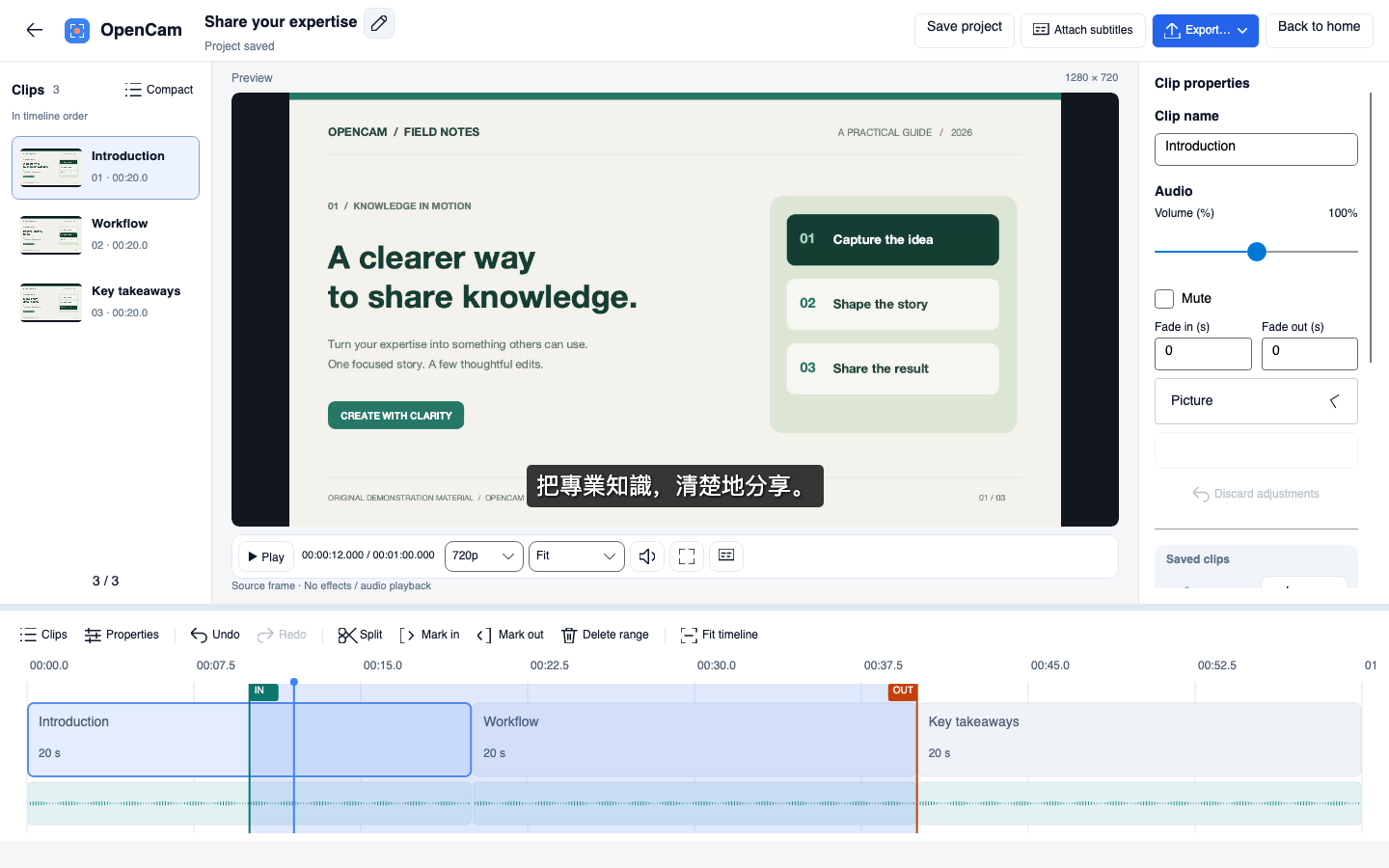
v0.3.5: drag the ruler for progressive preview, settling at release. Playing preview pauses during dragging and resumes afterwards. Compact controls put caption language/styles in the caption menu. Mark in immediately displays a fixed IN flag; move to the desired position and Mark out to highlight the range. A new start clears the old end; invalid endpoints show guidance. Only Delete range edits clips. Decode responsiveness depends on media and hardware.
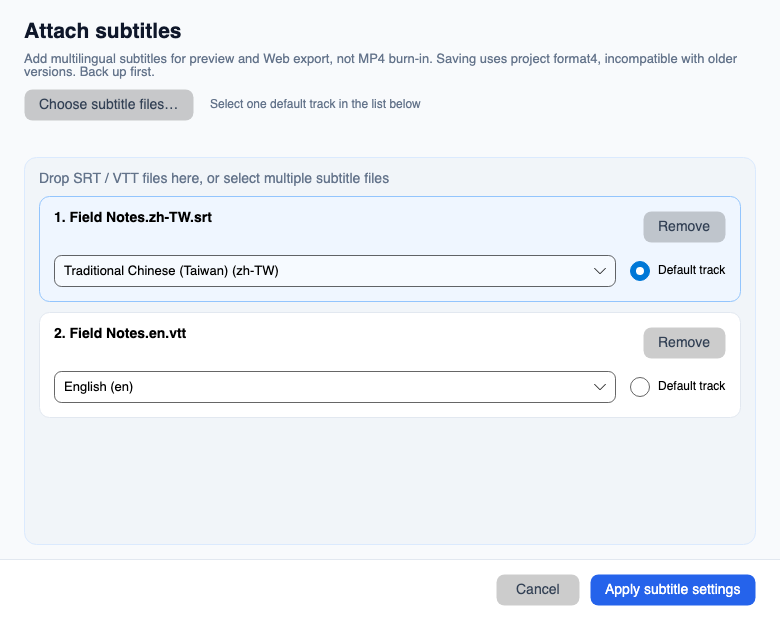
v0.3.5 multilingual captions: attach SRT/VTT by selection or drop; unique project-owned copies avoid collisions. Language names follow the application language and include codes. Select the default on a subtitle card, apply, then save explicitly. Preview/fullscreen and Web CC controls offer language, size, theme, opacity and position; no MP4 burn-in. The Web sidebar offers searchable transcripts, highlighting, seek preserving play/pause, optional follow mode and bounded scrolling. Timeline edits require synchronization confirmation. Subtitle projects use format4; released0.3.3 cannot open them. Back up first. See subtitle limits.
High-performance capture
While idle, enable High-performance capture in Settings → Video Quality & Actions. Windows uses Windows Graphics Capture; macOS uses ScreenCaptureKit with Apple VideoToolbox. This option is off by default and overrides the standard capture selection when enabled. Check Actual capture after startup to see the active method.
Capture one display or a rectangle within it. On Mac, select Auto or Apple hardware encoding and grant screen-recording permission. If recording cannot start, turn this option off to use standard capture.
When should I enable it? Try it for video, animation or games when standard capture is not smooth. Leave it off for everyday tasks, slides, or recordings that are already smooth. Compare the same region at 30 FPS and Standard quality before changing resolution or FPS. This changes capture technology, not picture quality, and does not guarantee the requested FPS. OpenCam still records the selected screen area; this is not a dedicated game-hook recording mode.
On Windows, enabling it uses WGC instead of the GDI/Desktop Duplication selection; disabling it restores that selection. On Mac, standard capture uses the existing FFmpeg/AVFoundation path, while high-performance capture uses ScreenCaptureKit with Apple hardware encoding. The Windows capture selector does not apply to Mac. If startup fails, the picture is black or playback is less smooth, stop and turn it off to compare.
For moving content, start with 30 FPS and adjust for your computer's performance. Higher frame rates, full Retina resolution and simultaneous high-resolution playback increase GPU load. High-performance capture uses SDR H.264; HDR colours may differ. Stop recording before changing display configuration.
Windows screen capture
Settings → Video Quality & Actions → Windows screen capture offers Compatible capture (GDI) and Desktop capture (Desktop Duplication). GDI is the default. Choose a method for your computer and display setup. When enabled, High-performance capture takes priority and uses Windows Graphics Capture.
After recording starts, Actual capture shows GDI, Desktop Duplication or Windows Graphics Capture. Desktop capture supports unrotated displays on a single hardware graphics adapter, recording one display or a region within it at a time. Multiple GPUs, cross-display regions, rotated displays or uncertain GPU mapping use GDI and show the reason.
Change capture mode only while idle, not while paused. Audio/cursor controls remain available during pause. Recording keeps the same capture method and encoder after it starts. If a display or desktop change prevents capture, recording stops and preserves working files for recovery.
OpenCam lets you record, edit, and resume recording. It writes MKV sources, retains them alongside a reopenable editing project, and exports MP4 when needed. Crash Recovery can attempt to preserve successfully written recordings; project recovery drafts protect interrupted unsaved edits.
This guide covers OpenCam v0.4.1: recording, editing, audio trials and MP4/GIF/Web export. See what changed in this version.
v0.3.3 replaces manual export with an Export… menu offering MP4 video or Web player. MP4 accepts a filename; Web player creates a unique folder containing index.html, media.mp4 and opencam-player.js. Chapters follow saved clips and show start times and durations in a scrollable index. Overlay controls provide seeking, volume, speed, wide-screen and fullscreen. Move the complete folder together and use an H.264/AAC-capable browser. See the web export format.
v0.3.2 adds fullscreen seeking, clip context menus, adjacent merging and connected group borders. Selecting a clip seeks its beginning; MP4 export accepts a destination and filename. The home screen shows total project recording time and allows changing automatic export while paused. Merging clips upgrades the project to schema 3, which older versions cannot open; back up the entire project before upgrading.
v0.3.1 increases the default home height and preserves encoded video for compatible whole, unedited multi-clip exports needing audio normalization. Progress distinguishes inspection, copy, audio conversion, rendering and verification. Temporary PCM requires extra disk space and is cleaned up on completion/cancellation without modifying original MKVs. Unsafe copy cases still require rendering.
v0.3.0: home and project workflow
- With no project open, Start recording asks for a name prefilled with the date and time. Confirm creates the project and starts capture; Cancel does neither.
- With an existing or reopened project, Start appends clips. Auto-export MP4 on stop is on by default for each project. Turn it off to save content on Stop and manually export later.
- New recording project creates without capturing. Open recording project selects
project.opencam. The home screen shows the current name and clip count. - After a saved pause or completed stop/export, Edit recording opens the current content. The editor handles editing, project saving and MP4 export; returning home retains the project.
- Active recording blocks editor entry and project creation/opening. A saved pause permits editing, but switching projects requires stopping. The home window is locked while the editor is open; return home before resuming recording. Both return and close paths prompt about unsaved edits.
- Project saved means the editing data was saved, not that an updated MP4 was exported. Retain the entire project folder and sources; do not move only the
.opencamfile.
See the README for Windows download and portable-use instructions. Pause, resume, edit and save your recordings, reopen projects to append more, and export in the format you need.
Editing, preview and saving
- Select clips in the left list or timeline; dragging only reorders and never trims clip edges. Seek and explicitly split at the playhead or delete a selected range/whole clip. Undo/redo lets you revise edits; previously saved accidental trims are not restored automatically.
- Clip properties include name, volume (0–200%), mute, fades, crop, scale and position. Apply property changes to commit them to the edit recipe. The pencil beside the title renames the project without moving its folder or original MKVs.
- Preview supports play/pause, seeking, quality selection, a resizable area and fullscreen. Preview sound is on/off, with no separate volume slider; it does not change exported audio. Original-resolution preview is subject to a frame-memory limit. Preview quality does not change export settings.
- Explicit Save commits the editing version. A recovery draft protects interrupted edits; it is not a saved version or an updated MP4. Switching/closing with unsaved changes offers Save, Discard or Cancel. Reopening a recoverable draft offers a restore decision.
- Resolve unsaved changes when prompted before manual export. If the same content has a verified existing output, choose Open Existing, Export Again or Cancel. Export has progress and cancellation controls; cancellation/failure preserves source media.
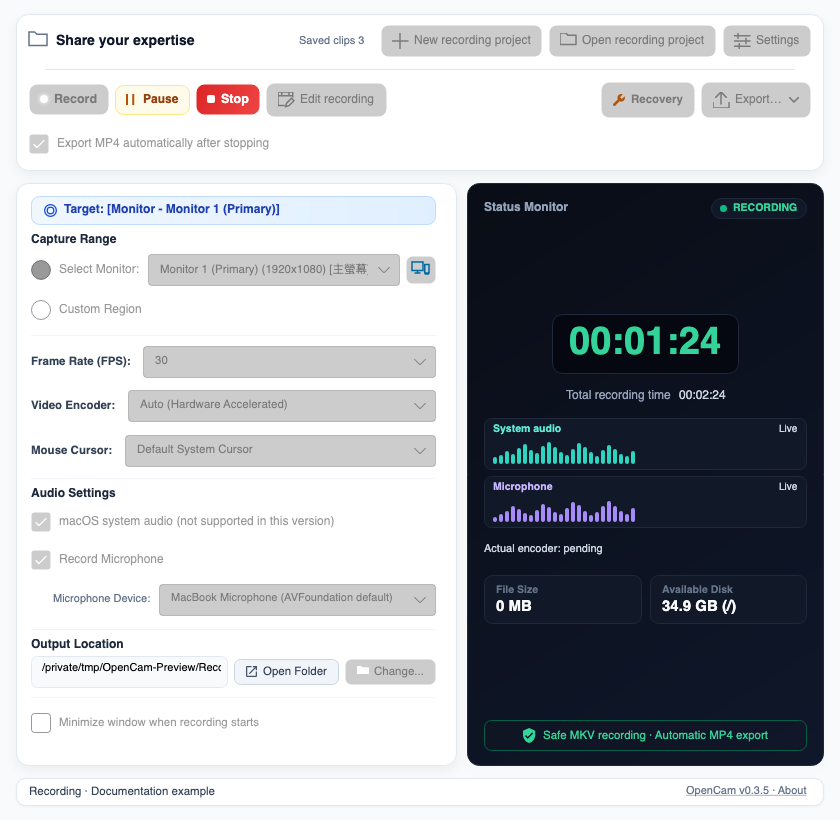
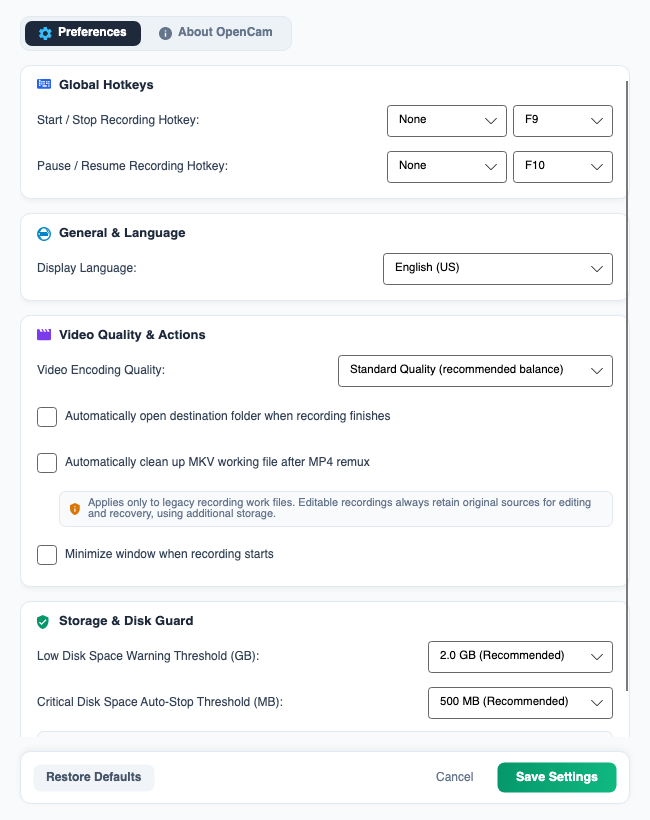
These illustrations show v0.3.5. See this guide for current features. Select an image to view full size.
1. System Requirements and First Launch
Windows
- Windows 10 or Windows 11, x64.
- Both the installer and portable package include the required runtime components.
- Download
OpenCam_v0.4.1_Windows_x64_Setup.exeorOpenCam_v0.4.1_Windows_x64_Portable.zipfrom Releases. Filenames identify the version, Windows platform, and x64 architecture. - System audio uses Windows loopback capture. A microphone can be selected in OpenCam.
macOS
- macOS 13 Ventura or later.
- The official build currently supports Apple Silicon (arm64). An Intel Mac (x64) build is not currently provided.
- Download
OpenCam_v0.4.1_macOS_arm64.dmgfrom Releases; arm64 identifies Apple Silicon. - After first launch, open System Settings → Privacy & Security and allow OpenCam to use:
- Screen & System Audio Recording
- Microphone, when microphone recording is needed
- If a permission change does not take effect immediately, quit OpenCam completely and reopen it.
- On macOS, OpenCam uses the current system-default input device. To use a different microphone, select it in macOS Sound settings before recording. You can also change the default device while paused and then resume.
2. Quick Start
- Under Capture Range, select Monitor or Custom Rectangle.
- Select the FPS (5, 10, 20, 30 or 40; default 10), encoder, and cursor style. If needed, choose the default quality in Preferences first.
- Choose whether to record system audio and the microphone.
- Confirm that the output location has at least 1 GB of free space. You can set Export MP4 automatically after stopping before your first recording. The choice applies to newly created recording projects; opening an existing project uses that project's saved setting.
- Select Start Recording. OpenCam immediately locks settings that must not change, including while it is preparing the recording.
- While recording, you can pause, resume, or stop. Pause first if you need to change the audio switches or cursor style.
- After Stop Recording, wait for the sources to be saved and, if auto-export is on, for MP4 export to finish. With auto-export off, no new MP4 is expected; manually export later.
If you try to close the window while OpenCam is preparing, recording, or paused, it displays a warning and cancels the close request. Stop the recording and wait for finalization before closing the application.
If the operating system terminates the UI or it exits abnormally, the background Recorder detects that its parent process has gone away, safely stops and closes the current MKV, attempts finalization, and then exits. It does not keep recording unnoticed after the UI disappears. If finalization did not finish, reopen OpenCam and use Crash Recovery.
If startup status cannot be confirmed, settings remain locked but Stop is available for a safe-stop attempt. Only if that attempt fails does the close warning offer Force Quit…, followed by a second confirmation. Force quitting may interrupt MKV writing. If no MP4 appears after reopening, run Crash Recovery using the original output location. An ordinary click on the window close button never forces the recorder to quit.
3. Recording Modes
Monitor
Records the complete image from the selected display. If multiple displays are connected, choose one from the monitor list.
If you are unsure which physical display is “Monitor 1/2/3…”, select monitor mode and click the compact Identify Displays icon to the right of the monitor list (hover for its tooltip). OpenCam briefly shows the matching number on every connected display, highlighting the selected one. This works with any number of displays. If geometry or scaling makes a match uncertain, OpenCam omits that label and shows a notice rather than risk identifying the wrong screen. Labels are dismissed when recording preparation begins and do not appear in the video.
“Complete image” means the entire selected monitor; OpenCam does not combine all displays into one video. The monitor source is locked after recording starts. Stop the current recording before switching displays.
Custom Rectangle
This mode opens a selection frame for defining the exact area to record. The inside of the frame is transparent so that you can see the content that will be captured.
- Drag the body of the frame to move the region.
- Drag an edge or corner to resize it.
- Press Enter to confirm the region.
- Press Esc to cancel selection.
OpenCam converts the region to physical screen pixels and, when necessary, adjusts it to even dimensions accepted by the encoder. The region can only be changed before recording starts.
4. Recording Parameters and Main Window Options
FPS
- 5/10 FPS: Suitable for slides, step-by-step instructions and screens with little motion. The default is 10 FPS.
- 30 FPS: Recommended for tutorials, presentations, meetings, and long recordings. It uses fewer resources and produces smaller files.
- 20/40 FPS: Adjust for the content and system load. 40 FPS requires more processing and is not guaranteed to be smoother than 30 FPS.
The recording selector no longer offers 60 FPS. An old 60 FPS preference migrates to 30 FPS; existing project and video timing metadata is not rewritten.
Encoder
- Auto: Recommended. OpenCam prefers an available hardware encoder and falls back to CPU encoding when necessary.
- CPU (libx264): Highly compatible, but generally uses more CPU.
- Hardware encoding: Depending on the platform and hardware, OpenCam may use NVIDIA NVENC, Intel QSV, AMD AMF, or Apple VideoToolbox.
The recording status panel shows the encoder in use:
- Auto does not guarantee hardware encoding. Windows validates NVENC → QSV → AMF; macOS validates VideoToolbox. The first successful candidate is selected. An unavailable explicitly requested encoder falls back to CPU, not another hardware vendor.
- Look for Actual encoder below the audio meters. Before startup it says the encoder will be shown after recording starts; afterwards it displays libx264 (CPU), NVENC, QSV, AMF or VideoToolbox, including the reason when CPU encoding is used.
- A failed hardware start permits one CPU retry only before the first successful segment. After that, the session keeps its actual encoder, including after paused audio/cursor changes. A failed resume retains valid segments and the paused state: retry or Stop to finalize them. Use recovery after an interruption. Failed candidates never overwrite existing files or enter the normal concatenation list.
- If recording cannot start, check the application logs. Review paths and device details before sharing logs.
Encoder fallback preserves the selected recording resolution, FPS and quality.
After successful process cleanup, unconfirmed failed attempts are retained in the same session directory as failed_attempt_*.mkv for diagnosis or expert manual inspection, not automatic concatenation into normal or recovered output. Cleanup or quarantine failure blocks another launch. Confirmed segments and unknown crash-time working files retain the existing recovery behavior.
Quality
- The default quality is selected in Preferences and applies when the next recording starts.
- Ultra: Highest visual quality, with larger files and potentially higher encoding load.
- Standard: The default and recommended general-purpose choice, balancing clarity, load, and storage.
- Compact: Smaller files for limited storage or long recordings, with less visual detail.
Encoders use different quality-control methods, so the same preset does not guarantee an identical bitrate or file size on every computer.
Cursor Style
- Native cursor: Keeps the normal pointer appearance.
- Yellow halo: Adds a visible halo around the pointer.
- Halo and click ripple: Adds both the halo and visual click feedback.
- Hidden cursor: Omits the pointer from the video.
- Presentation pointer (stick): A red tip follows the pointer, with an outlined white shaft extending down-right for presentations and demonstrations. Mouse interaction stays the same.
Editable Pointer
Enable High-performance capture, then Editable pointer in Settings. This affects newly recorded project segments only: you operate with the normal desktop cursor, while the source video omits it and a separate track stores pointer positions inside the recording area. No desktop presentation-stick overlay is started.
In Edit recording content, select a slim stick, arrow, dot, or Hidden, with a size of 50–200%. Stick and arrow hotspots are at their tips. Preview, MP4, GIF, and the web player's video use the same settings, including save and undo/redo. Visible pointers require re-encoding, which can take longer than direct remuxing.
This mode stores an additional track and adds capture/composition work; it does not promise faster recording. Check performance on your computer before long or high-resolution recordings, and leave it off when editable pointers are unnecessary.
Windows uses native WGC; macOS uses ScreenCaptureKit. The first macOS version targets ordinary desktop use and does not promise to follow cursor auto-hiding in games or other apps; choose Hidden in the editor when needed. macOS may require Input Monitoring permission; check system privacy settings if pointer preparation fails. Keyboard input and positions outside the recording area are not recorded. Compatible capture does not support this mode.
Already-baked cursors in older videos cannot be removed and receive no second pointer. Back up or move the whole project folder, including its pointers tracks. Missing or damaged tracks preserve the video but stop pointer-enabled preview/export; explicitly choose Hidden to export without the postproduction pointer. Projects using this feature require schema 5 and cannot be opened by older versions.
System Audio and Microphone
The two audio sources can be switched independently, supporting four combinations: no audio, system audio only, microphone only, or both sources.
- System audio: Records audio played by the computer. On macOS 13 or later, this uses ScreenCaptureKit.
- Microphone: Windows lets you select a device in OpenCam. macOS uses the system-default input device.
Audio settings are initially locked after recording starts. To change system-audio or microphone recording, pause first, make the change, and resume. OpenCam applies the new setting to the next recording segment.
The recording status panel shows separate live level waveforms for System Audio and Microphone, helping you check whether each input is receiving sound. These are approximate recent volume indicators, not an audio preview or a calibrated meter:
- Live: Detectable input level is present.
- Silent: The source is being monitored, but its level is very low or zero.
- Off: This source is not enabled for the current segment.
- Paused: Recording is paused; the waveform does not imply active capture and refreshes after resuming.
- Unavailable: Live level data cannot currently be obtained. This does not prove the recorded track is silent; if it persists, stop and inspect the result and audio device.
The waveforms read only level values from the capture path. They do not store extra raw audio or change the recording.
Output Location
- Open Folder: If a completed recording exists, OpenCam opens the output folder and attempts to select the latest result; otherwise, it opens the folder itself.
- Change: Selects a new output folder. This is available only while idle.
Changing the output location also changes where OpenCam scans for recoverable sessions. To recover a recording previously stored elsewhere, first set the output location back to its original output root.
Minimize When Recording Starts
When enabled, OpenCam minimizes the main window once recording starts so that it does not appear in the captured content.
5. Recording, Pausing, and Locked Settings
As soon as Start Recording is selected, OpenCam locks the capture source, monitor, region, FPS, encoder, quality, output location, and other fixed options—even while the recording is still being prepared. This prevents a last-second change from appearing to affect a recording that is already being created.
While paused, only the following items can be changed:
- Whether to record system audio
- Whether to record the microphone, including microphone selection on Windows
- Cursor style
All other recording settings remain locked. Resuming creates the next MKV segment with the updated settings; a saved paused segment may also be edited. Stop saves the project and exports according to the per-project auto-export option. Pausing does not end the overall recording session.
6. Recording Mechanism and File Safety
The interface and recording engine run as separate processes. v0.3.0 retains original MKVs inside the project; edits change a recipe without rewriting sources. A new project contains:
<project folder>/
├── project.opencam
├── sources/
├── sessions/Sessions/<session ID>/  # MKV segments and session data
├── cache/
└── exports/
Each pause safely finishes and saves the current segment; resuming creates the next one. Back up the whole folder: project.opencam alone does not include source media. Older non-project recordings may still use <output location>/Sessions/, with segment_*.mkv or recording.mkv.
On a normal stop, the project workflow is:
- Asks FFmpeg to stop safely and finalize the current MKV.
- Checks that the working media is readable.
- Saves the project, then exports the current timeline if auto-export is on. Compatible complete clips may preserve encoded video, with audio conversion when needed. Trims, effects, incompatible streams or unavailable packet timing require rendering.
- Validates the MP4 with FFprobe.
- Saves a result including a sanitized project name, without overwriting existing results. Check the completion message for the actual output location.
Original project MKVs must be retained for reopening, editing and continued recording. The older Delete working files after successful remux setting does not permit deleting project sources. Do not remove MKVs from the project after exporting an MP4.
Disk-Space Protection
- At least 1 GB of free space is required to start recording.
- OpenCam checks the remaining space periodically while recording.
- It warns the user at the configured warning threshold.
- At the critical threshold, it attempts a safe stop before the disk is completely exhausted.
7. Preferences Reference
General and Language
- Language: Traditional Chinese, English (US) or Japanese for the application interface.
- Web player interface languages: Enable Traditional Chinese, English and/or Japanese, keeping at least one. Choose Automatic (browser preference) or an enabled fixed default. Disabling the fixed default restores Automatic. A single enabled language hides the web language selector.
- Viewers can switch the interface at the top right; their choice is remembered when browser storage is available. Automatic maps all Chinese variants to Traditional Chinese, Japanese to Japanese, unsupported languages to English, and unavailable browser language to Traditional Chinese. If that language is disabled, the fallback order is English, Traditional Chinese, Japanese among enabled languages.
- Settings apply only to future exports, not existing folders. Interface language is separate from captions/transcripts; switching it preserves playback position, search and caption choices.
- Open output folder when recording finishes: Opens the output location after an MP4 is created successfully.
- Minimize when recording starts: The same option shown on the main window.
Hotkeys
Default hotkeys:
- F9: Start/stop recording
- F10: Pause/resume recording
Available keys include F1–F12, R, S, P, Space, Insert, and Home. They can be combined with Ctrl, Alt, Shift, and selected modifier combinations. Start/stop and pause/resume cannot use exactly the same combination.
Global hotkeys are currently registered only on Windows. On macOS, use the controls in the OpenCam window. A visible hotkey preference does not mean that it can trigger OpenCam while another macOS application is in the foreground.
Default Quality
Sets new recordings to Ultra, Standard, or Compact by default. Changing this preference does not alter the fixed quality of a session that has already started.
Delete Working Files After Successful Remux
This setting belongs to the older non-project recording flow. v0.3.0 project sources are retained after successful export.
In the legacy flow it is off by default; enabling it clears non-project working files after successful remux. v0.3.0 original project segments remain retained.
Disk Warning and Critical Thresholds
- Warning choices are 1, 2, 5, or 10 GB; the default is 2 GB.
- Critical choices are 200, 500, or 1000 MB; the default is 500 MB.
- The warning threshold must be higher than the critical threshold. If OpenCam reads an invalid or malformed legacy setting, it restores the safe defaults of 2 GB and 500 MB.
- Regardless of these thresholds, starting a recording always requires at least 1 GB of free space.
About
Displays the current version, licensing information, and a link to the GitHub project. This tab does not change recording settings.
From 0.2.0 onward, OpenCam's project-owned source code is licensed under AGPL-3.0-or-later. Download packages include the complete LICENSE and a SOURCE.txt link to the corresponding source revision. FFmpeg and other third-party components retain their own licenses; earlier releases are not retroactively relicensed.
8. Result, Working File, Settings, and Log Locations
Default Output Locations
| Platform | Default location |
|---|---|
| Windows | C:\Users\<account>\Videos\ScreenRecordings |
| macOS | /Users/<account>/Movies/ScreenRecordings |
Change selects the root for new projects and the manual-export destination; an already-open project retains its folder. Project recordings live in its sessions/Sessions/ directory; legacy non-project sessions use Sessions/ under the output root.
Session Contents
The following location describes legacy non-project sessions. For v0.3.0, inspect sessions/Sessions/<session ID>/ inside the project and retain the whole project.
<output location>/Sessions/<session ID>/
├── session.json
├── segment_000.mkv
├── segment_001.mkv
├── recording.log
└── recovery.json        # Appears after a recovery attempt
Some sessions may also contain session.json.bak. .recovery.lock is a temporary lock used to prevent multiple OpenCam instances from recovering the same data simultaneously.
Settings File and Application Logs
| Type | Windows | macOS |
|---|---|---|
| Settings | %LOCALAPPDATA%\ScreenRecorder\user_settings.json |
~/Library/Application Support/ScreenRecorder/user_settings.json |
| Log directory | %LOCALAPPDATA%\ScreenRecorder\Logs |
~/Library/Application Support/ScreenRecorder/Logs |
Do not edit the settings file while OpenCam is running. When reporting a problem, the session's recording.log and the application logs are useful, but first check them for paths or device names you do not want to share.
9. When to Use Crash Recovery
This section covers session MKV recovery, not edit-draft restoration. After a v0.3.0 interruption, retain the whole project and reopen project.opencam; the draft prompt restores edits only. The root-scan steps below describe legacy non-project recordings. Project sessions live under <project>/sessions/Sessions/, so their recovery root is <project>/sessions. Recovering an MP4 does not restore project edits.
Crash Recovery is appropriate when:
- OpenCam or FFmpeg crashes during recording.
- The computer loses power, restarts, or the application is forcibly terminated.
- Finalization is interrupted and no final MP4 is produced.
- OpenCam reports a recoverable session after it is reopened.
Do not use it when:
- A recording is still active or paused.
- The MP4 completed successfully and you only want to edit it or repair an unrelated video.
- You need a general-purpose video converter.
At startup, OpenCam scans the Sessions directory under the current output location. To avoid mistaking an active recording for an interrupted one, a session with a heartbeat in the last 15 seconds is not offered for recovery. After an abnormal exit, reopen OpenCam and allow a short time for the scan to update.
Running Crash Recovery
- Confirm that no recording is still running.
- If the recording used a custom output location, set OpenCam back to that folder.
- Wait for the scan to finish. If recoverable data is found, the Crash Recovery control shows the number of sessions available.
- Select Crash Recovery and wait for all sessions to finish processing.
- Recovered results are written to the output root as
Recovered_<session ID>.mp4, with a numeric suffix when needed.
Recovery probes the MKV segments, skips empty, damaged, or unreadable entries, and first attempts to join all valid content. If the complete join fails, OpenCam progressively removes damaged trailing segments to salvage the longest readable continuous prefix. A result may therefore be marked as a partial recovery and omit the final damaged content.
Crash Recovery does not delete the original MKV files. If session.json is missing or corrupt, OpenCam also attempts to reconstruct the required information from surviving segments.
10. Manually Finding and Preserving an Incomplete Recording
For v0.3.0, back up the whole project first; its sessions live under <project>/sessions/Sessions/. The <original output location>/Sessions/ path below describes legacy non-project recordings.
If OpenCam does not yet show a recoverable session, or if you want to make a backup first:
- Confirm that OpenCam and its recording engine have stopped. Never move working files while a recording is active.
- Open
<original output location>/Sessions/. - Find the session directory corresponding to the recording time.
- Copy the entire directory to another safe location. Preserve
segment_*.mkv,session.json,recording.log, and all other files without first renaming or overwriting the originals. - Reopen OpenCam, restore the original output root, wait longer than 15 seconds, and then run Crash Recovery.
The final MKV may be unplayable if it was interrupted before finalization; this does not mean the earlier segments are lost. Unless you are familiar with FFmpeg concatenation, timestamps, and audio-stream consistency, let OpenCam attempt automatic recovery before modifying any original segment.
If no recoverable content appears, check the following in order:
- The selected output location is the original root used for that recording.
- At least 15 seconds have passed since the interruption, or OpenCam has been restarted.
segment_*.mkvor the legacyrecording.mkvexists and is larger than 0 bytes.recording.logand the application logs do not report a disk, permission, FFmpeg, or device error.
11. Troubleshooting
Recording Does Not Start
- Confirm that the output directory exists and is writable.
- Confirm that the disk has at least 1 GB of free space.
- On macOS, verify Screen Recording permission and restart OpenCam after changing it.
- Try 30 FPS, Standard quality, and the Auto encoder.
- Check the application logs for FFmpeg or encoder errors.
No System Audio or Microphone on macOS
- System audio requires macOS 13 or later and Screen & System Audio Recording permission.
- The microphone requires Microphone permission and uses the current macOS default input device.
- For intermittent audio, first reduce system load with 30 FPS, Standard quality, and Auto encoding, and confirm that the default input device has a stable connection. If it continues, preserve the logs and a short test video for diagnosis.
No MP4 Appears After Stopping
-
Check the current project's auto-export-on-stop switch first. With it off, Stop saves the project only; use manual export.
-
Validation and remuxing continue after the stop request. Long or multi-segment recordings take longer.
-
Do not forcibly close OpenCam during finalization.
-
Check both the output root and the matching
Sessionsdirectory. -
If finalization was interrupted, reopen OpenCam and use Crash Recovery.
The Custom Region Cannot Be Resized
- The selection frame can be reopened and adjusted only while OpenCam is idle and Custom Rectangle is selected.
- The region locks immediately after recording starts. Stop the recording before changing it.
Open Folder Does Nothing
- Confirm that the configured output path still exists and is accessible to the current account.
- If it points to a disconnected external drive or network location, change it to a valid local folder.
- Check the status area and application log for the folder-opening error.
GIF and Individual Clip Export
MP4 export quality
After choosing Export… → MP4, or Export clip… → MP4, select quality before choosing a filename. Web player export shows the same settings before the destination folder; they apply to its media.mp4.
- Quality: Keep current settings (default), Standard compression or Smaller file.
- Resolution: Original, Up to 1080p or Up to 720p. Aspect ratio is preserved without upscaling; portrait videos use portrait dimensions.
- The last accepted choice is remembered. Keep current settings retains the existing export strategy. Compression or resizing re-encodes, may take longer and may soften text/details. Actual size depends on the video content.
- Export settings do not modify sources, project canvas, frame rate or captions. Automatic MP4 export on stop retains its existing settings.
Right-click a video or audio clip in the timeline to Rename, Delete clip, or expand Export clip… → MP4/GIF. Deleting removes the timeline clip, not its original media, and can be undone.
The original video's Export menu and the editor offer GIF below MP4. In the clip list or timeline context menu, hover Export clip… to reveal MP4 and GIF. Only that clip's retained range is exported; compound clips include their parts, not other grouped clips. MP4 retains applicable audio and effects; GIF has no audio.
Choose a maximum width of 480/640/960/original and 10/15/20 FPS (default 640/15). GIF preserves aspect ratio, never upscales and loops continuously. There is no duration cap; at five minutes, an additional warning explains time, size and missing audio, and lets you continue. Long/high-resolution sources require substantial temporary disk space. Export does not modify originals, the project or subtitle timing, and does not burn in captions.
MP4 and GIF exports require a new filename. If a file or folder already exists at the selected location, choose Choose another name to return to the save dialog, or Cancel. Export starts only after a new destination is selected; existing content is kept. If export fails after starting, select the format and target again from the export menu.
12. Safe-Use Recommendations
- Before an important or long recording, make a short test and verify the picture, system audio, and microphone.
- Keep ample free disk space for long sessions and prevent the computer from sleeping automatically.
- Do not force-quit OpenCam, disconnect the output drive, or delete
Sessionscontent while recording. - Manually remove MKV working files only after the final MP4 exists and plays correctly.
- Before recording other people, meetings, copyrighted material, or confidential information, ensure that you comply with applicable laws and permissions.
Reading Recorder Health
- A live waveform means OpenCam is receiving level samples; a flat line in a quiet room does not by itself mean failure.
- Health may remain unknown during startup, immediately after resume, or whenever there is not enough evidence. This conservative state is not a confirmed failure.
- A Recorder health warning means the working file or frames stopped progressing repeatedly, the encoder reported an error, or a selected audio source has no usable samples. Check the preview and meters; if the warning persists, stop safely and preserve the Session and logs.