Simple recording and editing for Windows and macOS
Capture what matters.Keep it safe.
Record, edit and continue in one place. Organize clips, attach multilingual subtitles and export MP4, GIF or a web player with chapters and transcript search. Keep original MKV media in your project.
Windows requires x64. Fully extract the portable ZIP before running.
macOS requires Apple Silicon (M-series).
Release notes and other downloads: GitHub ReleasesRead the user guide
Current version v0.4.1 · Windows and macOS · AGPL-3.0-or-later
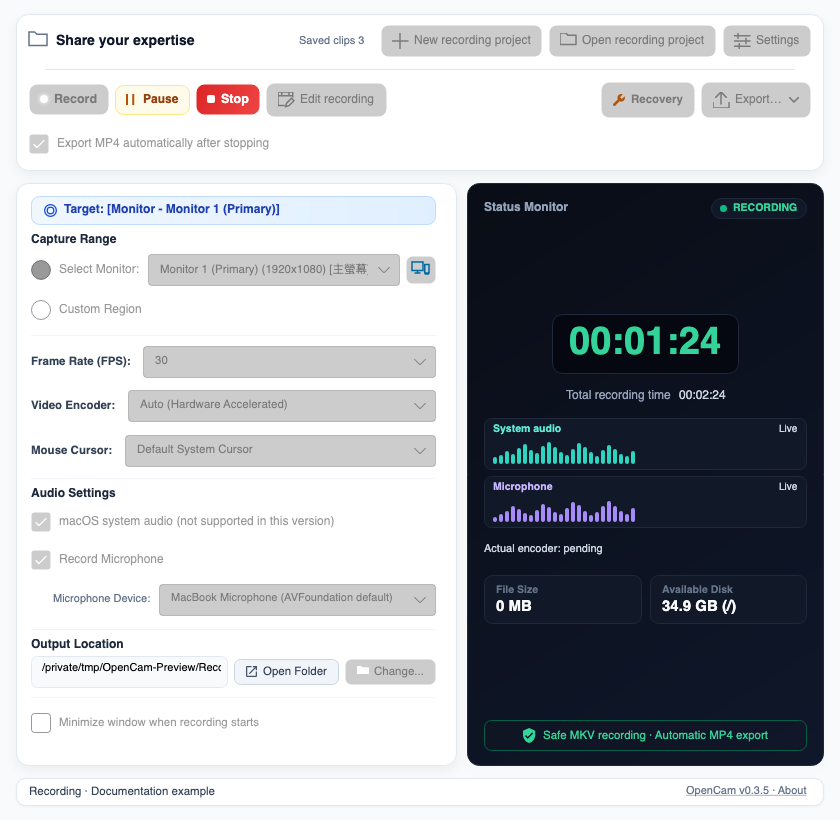 Recording with audio waveforms · macOS 0.3.5 · Enlarge image
01 / OpenCam
Clear from the first click.
Keep recording simple, then open the timeline when you need to edit. Separate audio waveforms help monitor capture. Enlarge images in place without leaving the page.
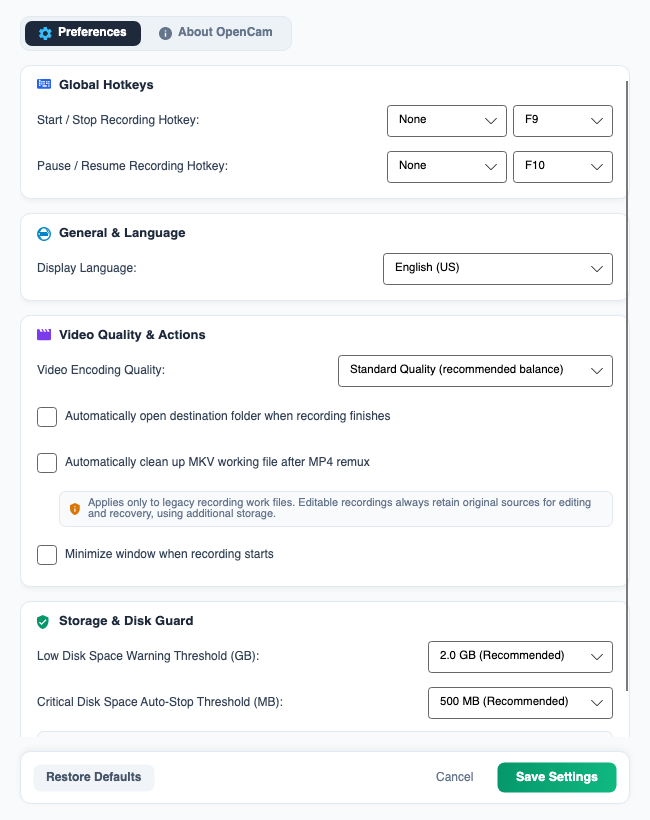
Illustrations show the v0.3.5 interface. See the user guide for current features. Device options follow the Windows or macOS platform.
NEW / 0.3.5
Turn your recording into a clearer story.
Preview above, timeline below. Use thumbnails and waveforms to split, trim or remove clips, and drag the clip list to reorder. Right-click timeline clips to rename, delete or export MP4/GIF. The application interface supports Traditional Chinese, English and Japanese.
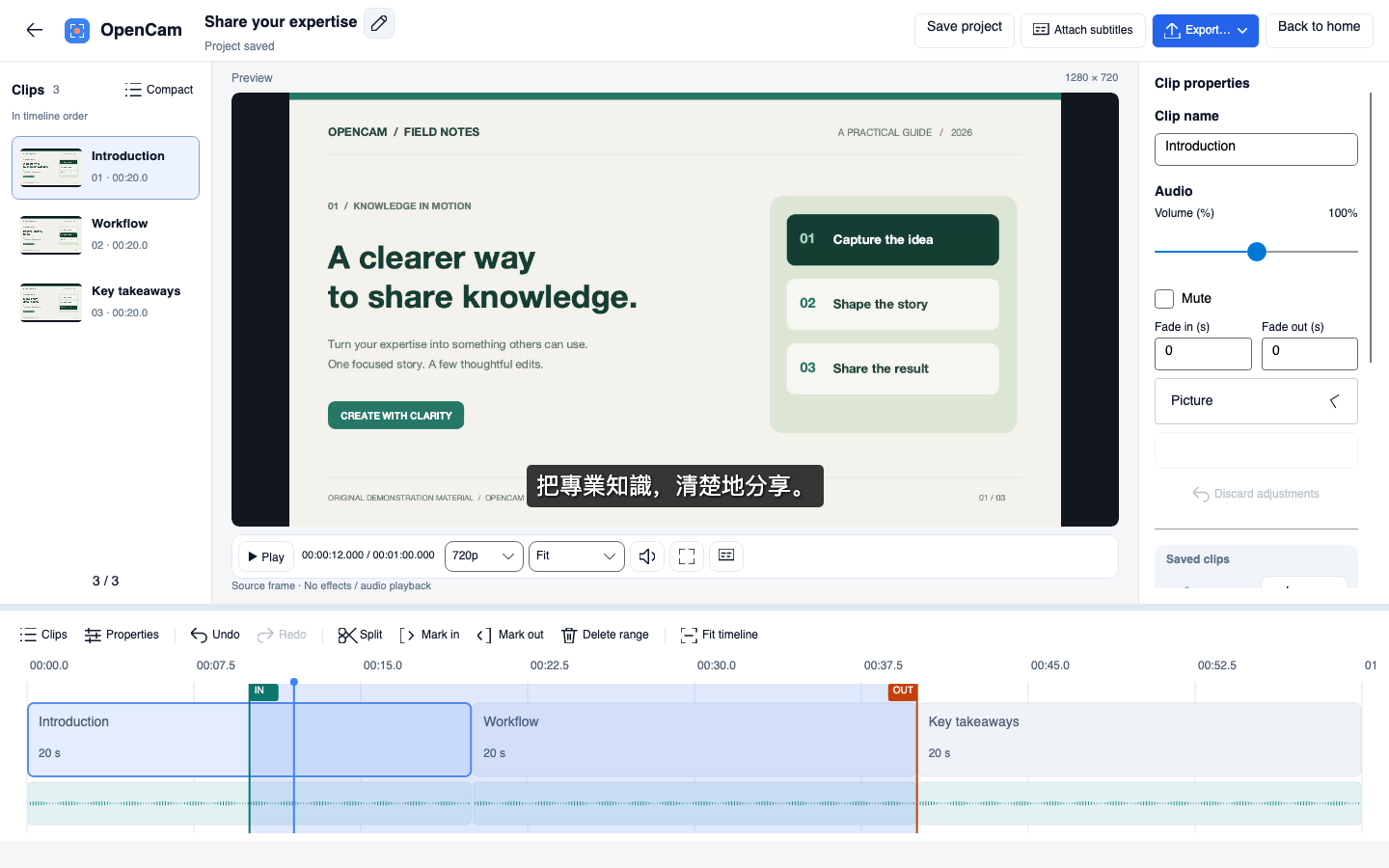
- Progressive ruler scrubbing; settle on release
- Fixed IN/OUT flags; marking never trims media
- Compact controls and caption menu; save and export separately
NEW / 0.4.1
Make lessons easier to follow and find.
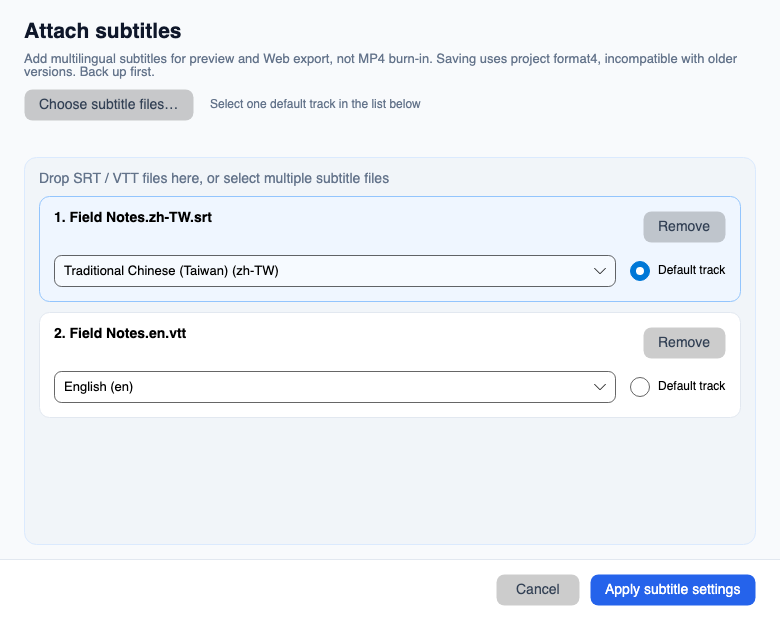
Select or drop SRT/VTT files. Unique project-owned copies preserve different languages without filename collisions. Choose the default on a card and preview languages/styles. Web exports include Transcript search, click-to-seek, optional follow mode, reading text/spacing/background settings and full HTML/TXT downloads. No MP4 burn-in. Saving subtitles uses project format4, incompatible with older versions; back up first.
02 / Features
Easy to start. Ready for the details.
- 01
Display or custom region
Identify every connected display, or frame a region with the transparent, resizable selector.
- 02
Monitor audio separately
Switch audio sources independently and see separate live levels. Optional warnings after 30 seconds of microphone silence never interrupt recording.
- 03
Timeline editing
Locate content with thumbnails and waveforms, then split, trim, delete ranges and reorder clips.
- 04
Save now, record again later
Save a project without exporting MP4, reopen it later and append more recordings.
- 05
Close protection and fallback
Closing during recording prompts a warning; unavailable hardware encoding can fall back to CPU.
- 06
Crash Recovery
After an interruption, attempt to salvage MKV segments already written.
- 07
Web player export
Package multilingual captions, chapters, volume, speed, wide-screen and fullscreen controls. Open offline or upload the entire folder.
- 08
Transcript search
Search attached captions, highlight matches and jump to their timestamps. Follow playback or read freely in a bounded scrolling list.
- 09
Audio preflight
Check selected system-audio and microphone inputs with a five-second audio trial and replay. A separate status area shows loading, trials and recording preparation.
- 10
Bookmark with a shortcut
Add bookmarks with a button or configurable shortcut; seek, rename or remove them in the editor. Hover over purple timeline flags for full names without rewriting video.
- 11
MP4 quality and GIF export
Choose MP4 compression and original/up to 1080p/up to 720p resolution for whole videos, individual clips or Web players. Choices are remembered, aspect ratio preserved and videos never upscaled. Compression re-encodes; size depends on content. GIF offers size/FPS options without audio, with confirmation at five minutes.
- 12
Choose capture for your content
Try high-performance capture when standard capture is not smooth for video, animation or games; leave it off for everyday tasks and slides. Windows uses WGC instead of the GDI/Desktop Duplication selector. Mac uses ScreenCaptureKit with Auto or Apple hardware encoding. It does not enhance quality or guarantee FPS; turn off to compare if startup fails or motion is worse. Recording offers 5/10/20/30/40 FPS, default 10.
03 / Recording and export
Keep originals. Choose how to share.
MKV recordings stay in your project while edits preserve the original media. Save, reopen and append recordings, then export MP4, GIF or a Web player. Compatible whole clips support fast export; trims and effects are converted as needed, with progress shown in the interface.
Read the user guide →- 01Record and retain MKV
- 02Save or edit
- 03Reopen and append
- 04Export MP4, GIF or Web
04 / Platforms
Choose your platform
Windows
Windows 10/11 · x64
macOS
macOS 13 or later · Apple Silicon (arm64)
05 / Guide
New to OpenCam? Start here.
A complete guide to recording, editing, saving, resuming, MP4/GIF/Web export and Crash Recovery.